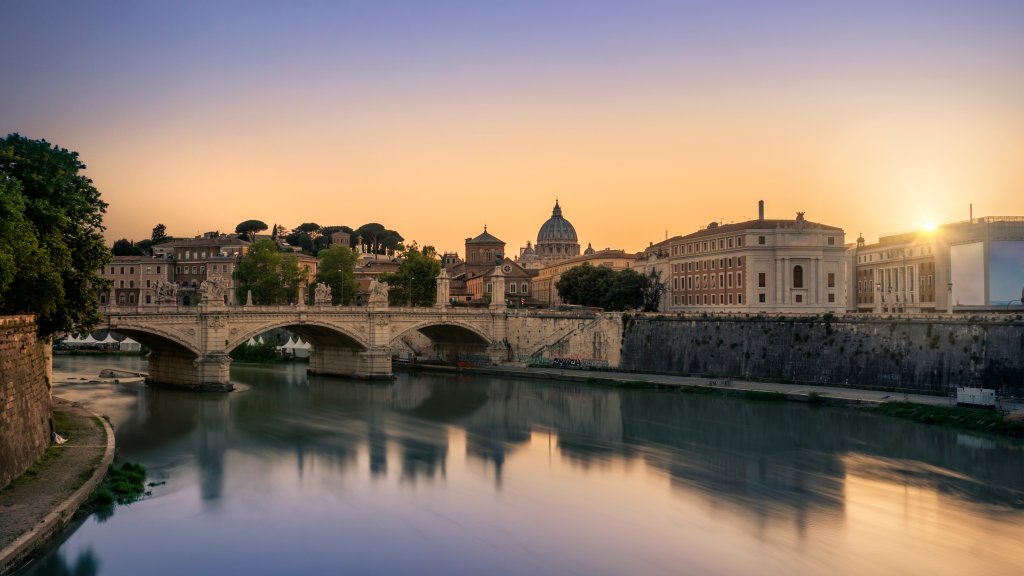
Vatican City, Rome, Italy
Sign in to add this photo to your favorites and desktop wallpaper rotation.
Vatican City is the smallest independent state in the world, both in terms of area and population. It is located within the city of Rome, Italy, and serves as the headquarters of the Roman Catholic Church and the residence of the Pope. Vatican City was established in 1929 by the Lateran Treaty, which ended the long-standing dispute between the Italian government and the Catholic Church over the Papal States. It is recognized as a sovereign state and is governed as an absolute monarchy, with the Pope serving as the head of state. The city-state is home to some of the most iconic landmarks in the world, including St. Peter's Basilica, the Sistine Chapel, and the Vatican Museums. These sites attract millions of visitors each year, making Vatican City a major tourist destination. Vatican City is also known for its cultural and religious significance, as it is the center of the Roman Catholic Church and the seat of the Pope, who is considered the spiritual leader of the world's 1.3 billion Catholics. The Vatican plays a key role in global diplomacy and has observer status at the United Nations. Overall, Vatican City is a unique and historic place that holds a special place in the hearts of Catholics and visitors from around the world.